Pages

Friday, March 27, 2015

Could not create sub sites even with full control permissions SP2013

Few days ago I faced very strange (to me) behavior in SharePoint 2013. User with explicit full control permissions over a site collection is unable to create a sub site. The form for creating sub site could be loaded without any problems https://<my_site>/_layouts/15/newsbweb.aspx. I entered all the necessary data and click on create button. I got the following yellow screen:

"Wow what is going on here?" was my first thought. 
I'm using non administrative account, but with full control permissions over the site collection and I can't create sub sites! My top level site collection is using a custom template and I'm using the same template for my sub site. The next step was to set the ULS log level to verbose and reproduce the issue. Inside the ULS logs I found a lot of Access Denied messages 
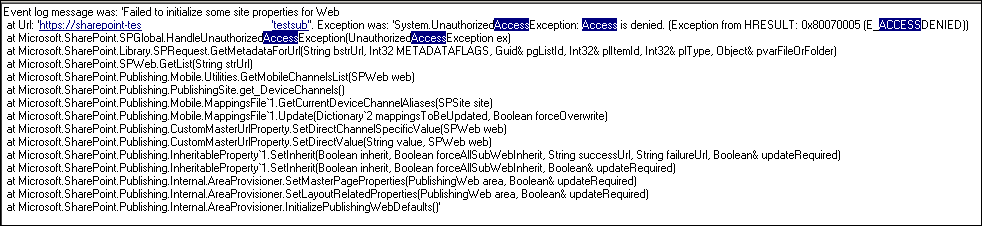
... strange because I was using account with explicit full control permissions over this site collection. OK  then I decided to add the account to the site collection administration group and test again - working :-) 
But this is not what I want. Removed the user from site collection administration group and continue analyzing ULS logs.
As you could see my get request to the DeviceChannels list failed. Checking  the list I found out the there no permissions over this list and my account has also no permissions over this list even the account has explicit full control permissions. I granted read permissions to my account over this list.
Unfortunately I got again the same yellow screen when trying to create a sub site with same user ... :-(
No other way I open again the ULS logs and start analyzing them. Fortunately found this one:
I went to PowerShell and check the ListID inside my site collection and guess what, this was TaxonomyHiddenList. And again no permissions over this list. Granted read permissions to my account and ... SUCCESS I'm able not to create sub sites ... yeahhhhhh :-)     

I hope this post could help you solve similar issues.

Happy SharePointing and don't forget to share this post!

Enjoy!

Wednesday, February 18, 2015

Too many access denied files by manual/schedule scan of Symantec Protection for SharePoint Server

Hello all,
 
with this post I would like to reveal another mystery with Symantec Protection for SharePoint server!
 
If you choose to use different account than SharePoint Farm account as SPSS service account you need definitely to know that the following link from Symantec about the minimum permissions need is NOT full!!!
 
For one of our customers we have the situation where the customer would like to follow Best Practices of Microsoft for SharePoint 2013 Server and in order to accomplish this task we created SPSS service account and assign all the permissions, mentioned in aforementioned article and the result was: 


The first feel was "Symantec are you kidding me"? Almost all files couldn't be scanned.
 
All permissions are granted and the manual or schedule scan of Symantec Protection for SharePoint is not working. Opening a case to Symantec did not help too. 
 
Then I decided to troubleshoot this one and find a permanent solution. First think was to set the trace log level to verbose and found out inside the ULS logs too many access denied messages. In a while I decided to grant the SPSS service account Full Read or Full Control to all Web Applications inside the Central Admin:

 
 And voilĂ :

 
SPSS could now scan almost all files. There are still access denied files, but they are not so many and it is normal. 
 
So as a conclusion in case you would like to run SPSS under different account than SharePoint Farm account you need to keep this missing information in mind.
 
Enjoy!


Wednesday, December 10, 2014

Useful links to monitoring and troubleshooting SharePoint Server 2013

Understanding the Logging Database
How to Query the WSS_Logging Database
How to Reduce the Size of the Logging Database
SEO in SharePoint Server 2013
SharePoint 2013 Analytics a Big Step Backward
How to Query the WSS_Logging Database
Install SSRS in SharePoint Mode
New-SPUsageApplication
Demystifying SharePoint Performance Management
Capturing Performance Counters for SharePoint
Enabling Usage Reports
SharePoint Usage Reports are Empty
Empty Usage Reports
View Popularity Trends and Most Popular Items
Planning for monitoring in SharePoint 2013
Microsoft Troubleshooting Methodology
Split-Half  Troubleshooting
Deductive Reasoning vs. Inductive Reasoning
SharePoint Farm Documentation Scripts at Codeplex.com
Acceleratio Documentation Toolkit for SharePoint
TechNet SharePoint Updates Center
Stefan GoĂźner's Blog
Difference between CU, PU, and service packs
How to find your SharePoint version with PowerShell
Software Updates Overview for SharePoint 2013
Farm Patching Explained
Be careful-some patches are on Windows Update
Communications Protocol (Wikipedia)
SharePoint Ports and Protocols
Using IIS Request Tracing
Enable the Developer Dashboard
SharePoint 2013 Troubleshooting Guide
SharePoint 2013 Administration Inside Out
Microsoft Message Analyzer
Microsoft Message Analyzer Operating Guide
Wireshark
Fiddler
Decrypting SSL Traffic with Wireshark
Webalizer
SharePoint Manager 2013
FeatureAdmin for SharePoint 2013
How to Use Kerbtray

Monday, December 8, 2014

SharePoint 2013 Distributed Cache service update!

Introduction
Maybe most of you want to update / updated or don't know that you could update SharePoint 2013 Distributed Cache Service.
First of all I need to say that you have to be very careful with Distributed Cache Service in SharePoint 2013!!!

I strongly recommend to read the Wictor Wilen SharePoint Blog carefully!!

I used the aforementioned procedure for several production environments and I could say it is working.

BUT there is only one exception when you are trying to update Distributed Cache in Cache cluster scenario!

Exception

There is a little exception I would like to share with you. When you gracefully stop Distributed cache.

Stop-SPDistributedCacheServiceInstance -Graceful

You will need to wait some time, so cached items are transferred to the another active node in Distributed cache cluster.

For example we have 2 servers in our Cache cluster: server1 and server2. Before we stop distributed cache service on server1 we could check the health of the cluster. Normally it should look like this:
  1. use-cachecluster
  2. get-cacheclusterhealth


Afeter Stop-SPDistributedCacheServiceInstance -Graceful you need to wait until "Unallocated named cache fractions" are transferred to server2, in our case.


You have to execute several time Get-CacheClusterHealth until Unallocated named cache fractions "disappear"

When you get the following:


You are ready to patch/update you distributed cache service.

In case you follow these additional steps you would be able to update your Distributed Cache Service without any issues/problems.

Feel free to contact me in case you need more help / information.

Enjoy!

Friday, November 28, 2014

How to install Symantec Protection for SharePoint

Hello all,

yesterday I mange to fix another mystery with Symantec Protection for SharePoint Servers (SPSS), latest version - 7.0.5.8.
Environment - SharePoint 2013 September 2014 CU.
According to Symantec the service account should have the following permissions:
  • Local Administrator - the server where SPSS will run
  • SharePoint Farm administrator
  • 'db_creator' Server Role on SQL
  • 'db_owner' permission for SharePoint Config and Content DBs
The installation itself finished successfully ... yeahhh.

BUT when I checked the SPSS service I was surprised -  the service was NOT RUNNING. If you try to start it I got the following error:


My first impression was that it should be something wrong with the account ... but it wasn't.
If you try to reinstall SPSS the result will be the same.

Fortunately inside the security log I found the following Audit Failure:


Fortunately this is easy to fix - just add the used account to the local GPO in log on as a service


And I thought finally it should start ... unfortunately no, it was not able to start ... grrrrrrrrr

The next error was:
Log Name:      Application
Source:        Symantec Protection for SharePoint Servers Service
Date:          27.11.2014 11:39:04
Event ID:      0
Task Category: None
Level:         Error
Keywords:      Classic
User:          N/A
Computer:      XXXX
Description:
Module=DirectorThread | Exception message=Requested value 'SPVERSION' was not found. | Stack=   at System.Enum.TryParseEnum(Type enumType, String value, Boolean ignoreCase, EnumResult& parseResult)
   at System.Enum.Parse(Type enumType, String value, Boolean ignoreCase)
   at Symantec.Sharepoint.Utility.FarmManager.IsSharePointFarm()
   at Symantec.Sharepoint.Service.DataAccess.SPSSDal. ()
   at Symantec.Sharepoint.Service.DataAccess.SPSSDal..ctor()
   at Symantec.Sharepoint.SPSSService.Code.DirectorThread.ThreadProc()


Symantec suggested the following:

The solution is to lower the User Account Control level during the install, or if needed turning off User Account Control for the account Symantec Protection for SharePoint Servers 6.0 will run as.  To do this go to Control Panel -> User Accounts -> click on Change User Account settings.  Lower the level to Never notify, and click OK.  Attempt to install Symantec Protection for SharePoint Servers 6.0 again, this time the install should work without throwing the mentioned exception above.  After SPSS 6.0 is installed the User Account Control Level can be returned to its previous level.

Sounds good, sounds really good ... BUT no, this solution is not going to fix the problem.

The real solution is to disable the UAC through the registry - turn off UAC via registry by changing the DWORD "EnableLUA" from 1 to 0 in "HKEY_LOCAL_MACHINE\SOFTWARE\Microsoft\Windows\CurrentVersion\policies\system"

Reboot of the server is required and when I reinstall the SPSS everything was working just fine.

Hope you will find this article useful!

Enjoy and comment!